
IHow Those Bucket People Use cloudHQ’s Gmail Auto Follow Up for Authentic Outreach
If you run a business, chances are you spend a significant chunk of your day in Gmail. Most people just accept that as the deal — Gmail is what it is, a decent email client that sends and receives messages and not much else. The problem is that your inbox is actually one of the most data-rich, workflow-critical tools in your business, and out of the box Gmail barely scratches the surface of what it could be doing for you.
cloudHQ changes that in a pretty significant way. It’s a suite of more than 60 Gmail productivity tools, covering everything from label sharing and email collaboration, to email templates, automated email campaigns, and exporting emails to PDF and Google Sheets. On top of that it handles real-time backup and data protection, plus sync and migration across cloud platforms. Some of the tools are small quality-of-life improvements. Others can genuinely change how you manage your business day-to-day. Here’s a breakdown of what it actually does.
The Gmail Productivity Tools
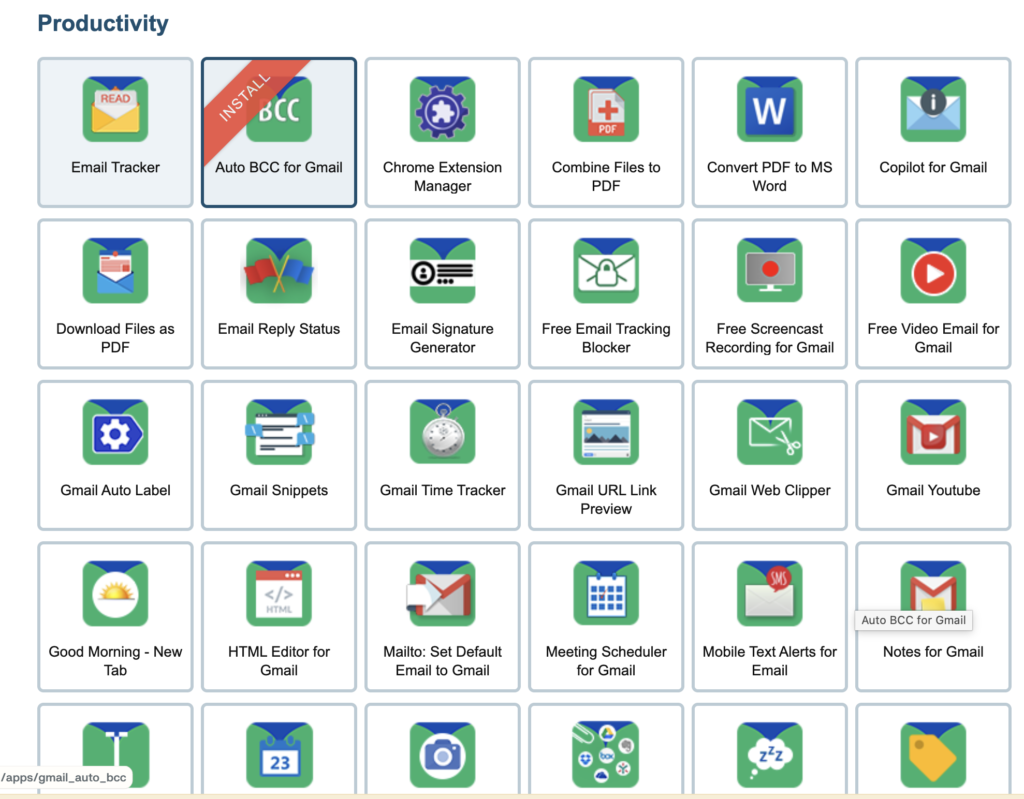
This is the heart of what cloudHQ offers, and the breadth of it is worth appreciating. There are tools for almost every Gmail pain point you’ve probably learned to live with — and a few that solve problems you didn’t know had solutions. Here are the ones that stand out most for business owners.
Save Emails as PDF. This works in just one click, includes any attachments, and lets you package multiple emails as a single PDF document, create a ZIP file with all emails in PDF, encrypt emails with a password, or export emails as text or HTML files. For client correspondence, contracts, or anything you need a clean paper trail on, this replaces a process that most people are still doing entirely by hand.
Export Emails to Google Sheets. The data sitting in your Gmail emails can be a goldmine. This tool parses and exports your email messages to a Google Spreadsheet — useful for processing invoices and receipts, exporting email leads, handling order confirmations and purchase orders from online shops, sharing emails like open issues with your team via Sheets, or importing data from emails directly into your database or CRM.
Get My Receipts. This tool finds all your emails that contain receipts with greater than 96% accuracy and automatically adds them into a spreadsheet organized by date, payment, taxes, merchant, subject line, email text, and includes a PDF of each receipt. For anyone reconciling expenses at the end of the month, or managing a team where multiple people are making purchases, this is a genuine time saver.
Gmail Label Sharing. Rather than forwarding emails one at a time, you can save them all to a Gmail label and share it with anyone who has an email address — collaborating on emails with other Gmail users in the same way you’d share folders in Google Drive. It’s great for HR teams discussing incoming candidate submissions, sales teams collaborating on clients, customer service teams handling client issues, and law firms discussing cases with everyone on the team.
Multi Email Forward. This saves a significant amount of time when you want to forward a large number of emails or migrate them to a new account — just click all the emails you want to send and they get forwarded all at once. It’s useful for onboarding new employees, forwarding receipts to HR or an accountant, migrating emails, and forwarding emails to a CRM.
Meeting Scheduler. This works directly from Gmail and is fully integrated with Google Calendar. It lets you send out a link so that other people can choose a meeting time based on your availability — no back and forth email chains required. For anyone who books a lot of calls or client meetings, this alone removes a frustrating amount of scheduling friction.
Auto BCC for Gmail. This automatically BCCs emails based on rules you set — whether that’s to yourself on another account, to an assistant, or to a CRM. Whoever should have a copy of your email always does, without you having to remember to add them manually.
Auto Follow Up for Gmail. This tool promises up to a 52% increase in responses from outreach emails. It lets you schedule up to 10 follow-up stages, use mail merge to send bulk email messages, track email replies, opens, and clicks, and link back to a CRM like Salesforce. For sales outreach or any situation where you need a response and don’t always get one, this automates the follow-up process entirely.
MailKing. This lets you create and send email campaigns right from your own Gmail account, with higher open rates, the ability to upload recipients via CSV or Excel, personalize mass emails with merge tags, use free email templates, and get real-time export of campaign stats to Google Sheets. For small businesses that want to run email campaigns without a separate platform, this keeps everything inside Gmail.
Email Tracker. This Chrome extension lets you know when your emails are opened in real time, with unlimited email tracking, a tracking dashboard, real-time and text notifications, reminders, and link tracking. Useful for sales, proposals, or any situation where knowing whether someone has actually read your email changes what you do next.
Copilot for Gmail. This acts as a mini CRM directly inside Gmail — letting you view profile information for your email contacts, create private or shared notes, set up reminder alarms for contacts, and see a full conversation history. For anyone managing client relationships without a full CRM setup, this adds a meaningful layer of context to every conversation.
How Those Bucket People Use cloudHQ’s Gmail Auto Follow Up for Authentic Outreach
Why We Needed This
We reach out to past buyers and warm prospects to announce new product runs at Those Bucket People. The challenge: we wanted real, one-to-one Gmail emails — sent with our usual Alex signature from Alex@thosebucketpeople.com — that would automatically follow up if someone didn’t reply, without looking like a mass blast from a bulk email platform.
Manual follow-ups were eating time. We’d send an initial email, then forget to circle back, or spend 20 minutes a day hunting through sent mail figuring out who hadn’t responded. cloudHQ’s Auto Follow Up for Gmail solved this cleanly.
How We Set It Up (Click-by-Click)
Step 1: Configure our Gmail identity and signature
- In Gmail, click the gear icon → See all settings.
- Go to Accounts → Send mail as → Add another email address.
- Add our email address and verify it.
- Still in Settings, go to General → Signature: create or select our standard signature and assign it to the address.
Step 2: Install cloudHQ Auto Follow Up
- Go to the Chrome Web Store and search for “Auto Follow Up for Gmail by cloudHQ.”
- Click Install.
- Open Gmail — you’ll now see the cloudHQ options appear in the compose window.
Step 3: Build the outreach email
- Click Compose in Gmail.
- In the From field, choose Alex@thosebucketpeople.com.
- Write a simple, personal email just like we’d normally send (no heavy HTML or formatted templates).
- Confirm our normal Alex signature is appended automatically.
Step 4: Create the follow-up sequence
- In the compose window, click the cloudHQ Auto Follow Up icon.
- Choose “New sequence.”
- Stage 1: Day 0 — the initial email we just wrote.
- Stage 2: If no reply after 3 days, send a short nudge (plain text, one sentence).
- Stage 3: If no reply after 7 days, send a value add — a quick tip or link relevant to what we sell.
- Enable open and link tracking.
- Set schedule to business hours only, with a 2-hour randomized send window to mimic natural sending patterns.
- Check “Stop sequence on reply” — this is critical so nobody gets a follow-up after they’ve already responded.
Step 5: Add recipients safely
- Click the Recipients field and import a CSV or paste email addresses.
- We send in small batches — 30 to 50 contacts per session — to keep deliverability strong and the outreach feeling personal.
Step 6: Send and monitor
- Click “Schedule sequence.”
- In Gmail, open the cloudHQ tracking dashboard to monitor opens, clicks, and replies in real time.
- When someone replies, the sequence stops automatically. We pick up the conversation manually in the same thread — no awkward double-sends.
Results We Observed
Because every email goes out from Alex@thosebucketpeople.com with our standard signature, recipients treat it exactly like a personal email. Our reply rate on outreach sequences improved noticeably compared to manual follow-ups we used to chase by hand. The team saves roughly 3–4 hours per week that used to go toward re-checking sent mail and manually drafting follow-up messages.
Tips That Helped Us
- Keep subject lines under 45 characters — shorter performs better on mobile.
- Avoid attachments in first-touch emails; link to a lightweight page instead.
- Write like a human. If you draft with AI, revise heavily to keep your actual voice.
- Small batches (30–50 per hour) keep your sender reputation clean.
Backup and Data Protection
80% of all data loss is caused by human error — and even if your files and emails are in the cloud, they can still be accidentally or maliciously deleted and lost. It’s an easy thing to feel comfortable about until something actually goes wrong, at which point no amount of regret gets the data back.
cloudHQ offers real-time data protection and backup of all your data in the cloud — covering all Google Workspace accounts in your organization, personal Gmail or Google Drive accounts, and all cloud apps used across your org. The distinction between real-time and scheduled backup matters more than it might seem. Scheduled backups always leave a gap between the last run and right now. That gap is your exposure window. Real-time backup closes it entirely, so every change is captured as it happens.
For a business handling client data, financial records, or any correspondence you’d need to recover in a hurry, that reliability is worth a lot. Being able to restore to any point in time — rather than just the most recent scheduled snapshot — gives you a level of control that scheduled backup simply can’t offer.
Sync and Migration
Even if your organization uses one primary cloud platform like Google Workspace, your employees, partners, and clients will use other tools — Evernote for note-taking, Dropbox for sharing with clients, Salesforce for CRM, Basecamp for project management. cloudHQ syncs and integrates all of these cloud apps and storage services together, and also provides fast, reliable migration solutions without any interruption to your business.
The migration side is particularly worth noting for anyone switching platforms or bringing on new staff. Multi Email Forward is a practical tool here — useful for onboarding new employees by forwarding all relevant emails at once, migrating email accounts, or forwarding emails directly into a CRM. It’s the kind of thing that sounds like a minor convenience until you’re actually setting up a new hire and realize how much time it saves.
cloudHQ is a Great Tool Kit for Business Owners
The tools listed above are just the highlights. cloudHQ also offers Gmail Snippets for composing full emails with just a few keystrokes, Mobile Text Alerts for getting SMS notifications with the full content of important emails, Snooze Email for temporarily removing messages from your inbox until you’re ready for them, Schedule Email for sending emails at a later date and time, an HTML Editor for Gmail, ChatGPT for Gmail for AI-powered reply generation and drafting, and a Gmail Time Tracker for logging billable hours spent on email.
It’s a long list, and not every tool will be relevant to every business. But the depth of it means that whatever your Gmail workflow looks like, there’s probably something in the cloudHQ suite that makes it faster. For any business owner who spends their day in their inbox, it’s worth exploring.
Try cloudHQ’s Gmail Auto Follow Up
If automated, authentic follow-up sequences sound useful for your outreach, start with the Auto Follow Up for Gmail extension. It’s the tool we use most and the one that’s had the clearest impact on our reply rates.
By Alex Ebinal | Owner, Those Bucket People | Published March 2026
Alex Ebinal runs Those Bucket People, a small business focused on product outreach and email-driven sales. He uses cloudHQ daily to manage Gmail workflows and automate follow-up sequences.
Disclosure: This post is written in connection with a cloudHQ incentive program.
Recommended apps:
Gmail Auto Follow Up by cloudHQ